How to Scan Your Website for Cookies
Learn how to scan your website for cookies with our free cookie scanner. This step-by-step tutorial shows you how to detect trackers, analyze results, and understand what's running on your site.
Find hidden trackers and privacy risks in under 5 minutes - no technical skills required.
You can't fix what you can't see. Before implementing a cookie banner or consent management solution, you need to know exactly what cookies and third-party services are running on your website.
The problem? Cookies are invisible to regular visitors. They're set by scripts, plugins, embeds, and third-party services - often without your knowledge. That analytics tool you installed last year? It might be setting cookies you've never disclosed. That YouTube video on your about page? It's tracking your visitors before they even click play.
In this tutorial, we'll walk you through scanning your website with the CodingFreaks Cookie Scanner - a free tool that reveals every cookie and tracker on your site. By the end, you'll have a complete picture of your website's cookie landscape.
What You'll Learn
This tutorial covers three essential steps:
- Scanning - How to run a comprehensive cookie audit
- Analyzing - Understanding your scan results and reports
- Understanding - Identifying privacy risks and compliance gaps
Coming Next: In follow-up tutorials, we'll cover cookie classification and banner integration to make your site fully GDPR-compliant.
Step 1: Scanning Your Website
You'll need:
- Your website URL
- 5-10 minutes (depending on site size)
- Optional: Your sitemap.xml URL for deeper scans
Recommended: Disable any ad-blockers or privacy extensions in your browser while viewing the scan results. Tools like Brave or uBlock Origin can interfere with how results are displayed.
1.1 Open the Cookie Scanner
Navigate to the CodingFreaks Cookie Scanner. You'll see a simple interface with a URL input field.
1.2 Enter Your Website URL
Type or paste your website's homepage URL into the input field:
https://yourwebsite.comTip: Start with your homepage. This is typically where most third-party services load (analytics, marketing pixels, chat widgets, etc.). You can select a higher page limit in Advanced Scan settings
1.3 Configure Scan Options (Optional)
For a more thorough audit, you can provide your sitemap URL and/or login to get the full access to scan more as 10 pages.
https://yourwebsite.com/sitemap.xmlUsing a sitemap allows the scanner to skip the crawling process and queue multiple pages, catching cookies that only appear on specific sections of your site (like embedded videos on blog posts or payment processors on checkout pages).
Scan depth options:
- Single page: Quick scan of one URL (~10 seconds)
- Sitemap scan: Comprehensive audit of multiple pages (~2-30 minutes)
1.4 Start the Scan
Click the scan button and wait for the process to complete. The scanner uses a headless browser to simulate a real visitor, detecting:
- First-party cookies (set by your domain)
- Third-party cookies (set by external services)
- Third-party CHIPS and Partitions
- Tracking scripts and pixels
- Embedded iframes and external content (resources)
- Network requests to third-party servers
- Nested communication between third-party
Step 2: Analyzing Your Results
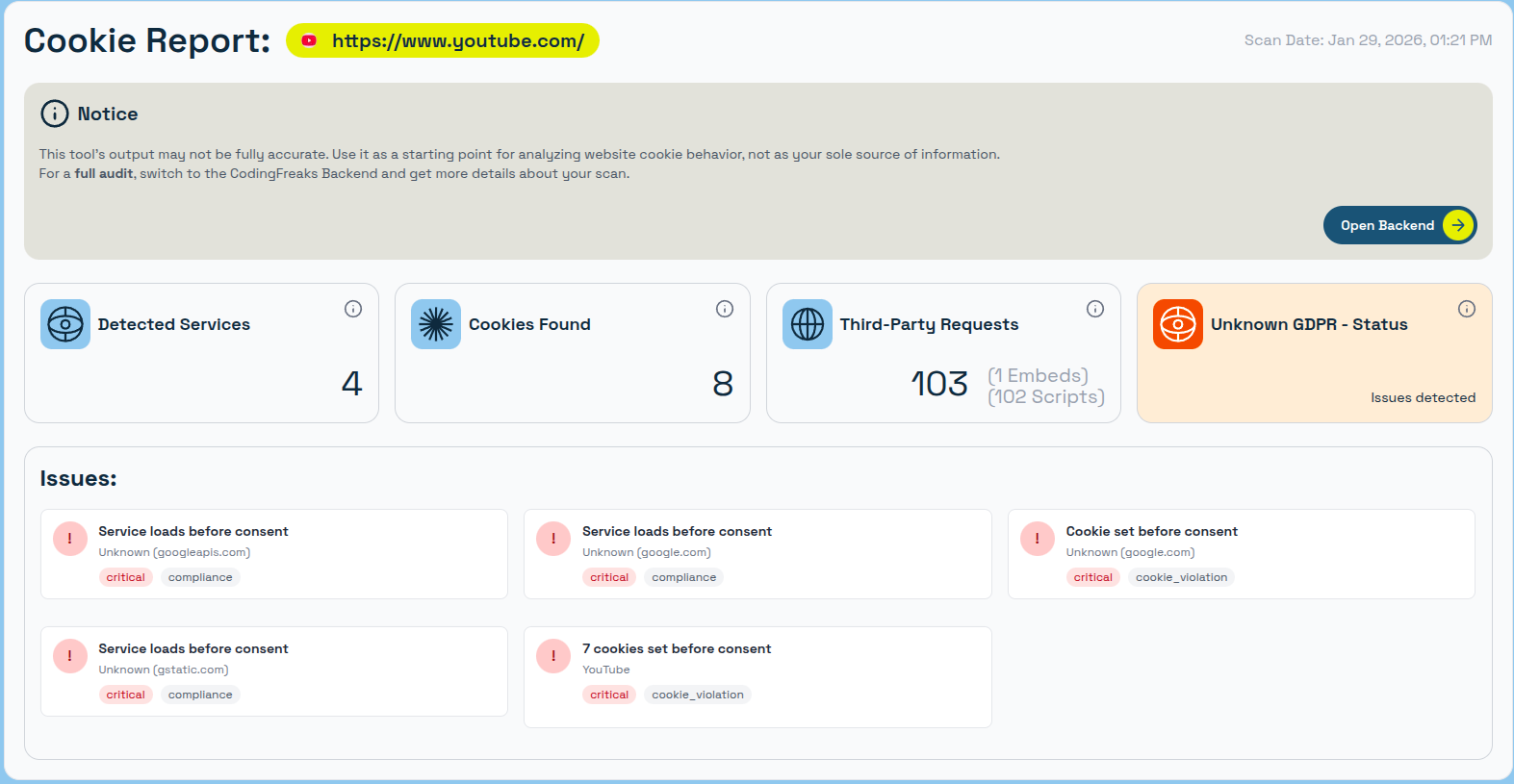
Once the scan completes, you'll see a detailed report.
Here's how to read it:
Detected Services: Unique Providers found, grouped into “Services”
Cookies Found: All thirdparty and firstparty cookies
Thirdparty Requests: Requests to Scripts/Rescources/Pixels or Iframe-(embeds)
Overall Status: Compliant/Non-compliant and Unknown (Unknown means, you scan as a Guest, please create an Account to get a FULL Audit)
Issues: Detected issues based on your Scan-Result, makes it easy for yout to understand and fix problems.
2.2 Services Detected
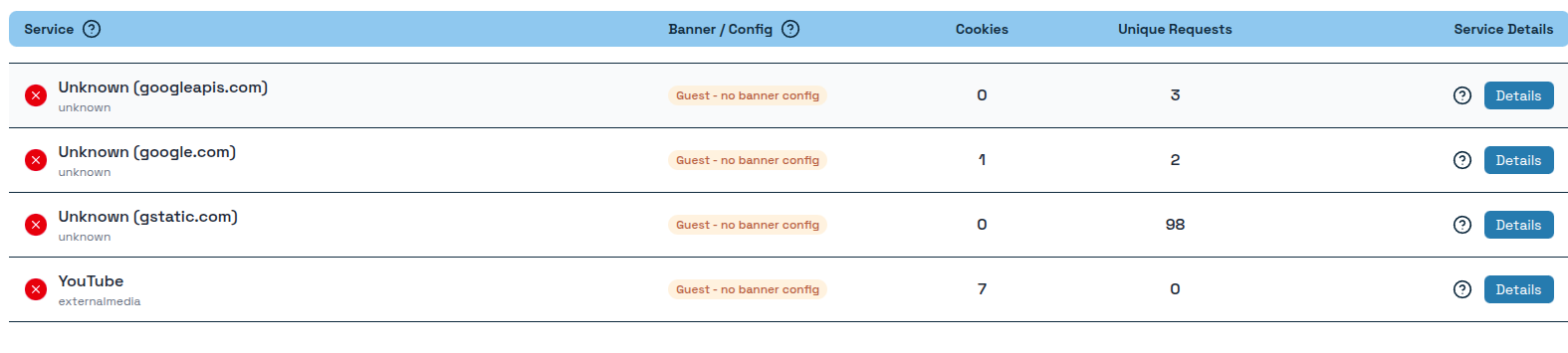
Below the overview, you'll see a list of identified services. Each entry shows:
Service Name + Category: The recognized third-party service (e.g., Google Analytics, Facebook Pixel, YouTube)
Banner-Config: Can only be displayed for known users/not-supporting guest scans (Full Audit with banner conifg)
Cookies: Specific cookies set by that service
Requiests: How many and what type of requests are made to external providers
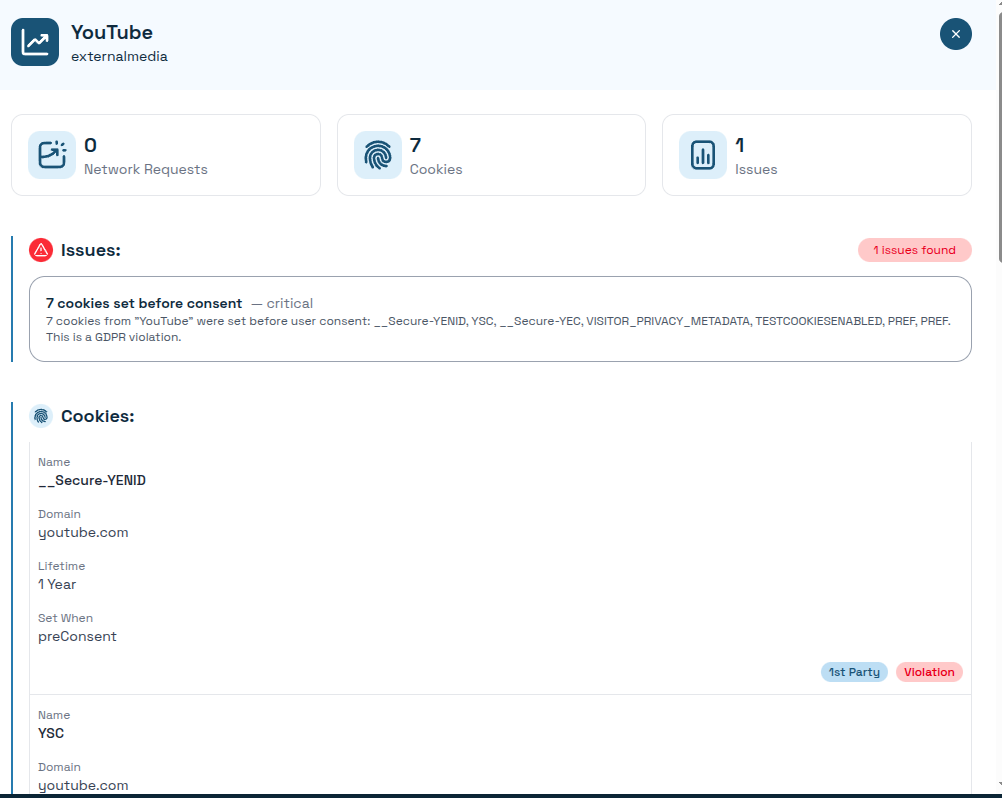
Details Button: Click to see Issues, loaded requests and individual cookie information
Unknown Services
Services not found in our Cookie Database appear as "Unknown." These require manual classification they might be:
- Custom scripts you've added
- Lesser-known third-party tools
- Legacy code that should be removed
- Potential security concerns
Action required: Unknown services need investigation. Click the details to see what domain they're coming from and what data they're collecting.
Step 3: Understanding Your Results
Now that you have your scan data, let's interpret what it means for your website.
3.1 Identify Essential vs Non-Essential Cookies
Review each detected service and categorize it:
Essential (No consent required):
- Authentication/login cookies
- Shopping cart functionality
- Security tokens (CSRF protection)
- Load balancing cookies
Non-Essential (Consent required):
- Analytics (Google Analytics, Matomo, Hotjar)
- Marketing (Facebook Pixel, Google Ads, LinkedIn Insight)
- Social media embeds (YouTube, Twitter, Instagram)
- Personalization beyond basic functionality
Rule of thumb: If your website would still work without it, it's probably non-essential and requires consent.
3.2 Spot Privacy Red Flags
Look for these common issues in your scan results:
| Red Flag | What It Means | Action |
|---|---|---|
| Many "Unknown" services | Unidentified trackers on your site | Investigate and classify or remove |
| Marketing cookies you didn't add | Plugins or themes adding trackers | Audit your plugins/themes |
| Cookies from domains you don't recognize | Potential security risk or forgotten integrations | Investigate immediately |
| Third-party cookies loading before interaction | Services tracking without consent | Implement proper cookie blocking |
3.3 Document Your Findings
Create a simple inventory of what you've discovered.
This inventory becomes the foundation for your cookie policy and consent banner configuration.
3.4 Cross-Reference with the Cookie Database
For each identified service, check the Cookie Database to find:
- Detailed cookie descriptions
- Standard retention periods
- Pre-configured consent categories
- Ready-to-use texts
The database saves hours of research by providing accurate, compliance-ready information for common services.
What's Next?
You now have a complete picture of your website's cookie landscape.
Next steps in your compliance journey:
- Classify your cookies — Organize services into proper consent categories
- Configure your banner — Set up the Cookie Manager with your categories
- Implement consent blocking — Ensure non-essential cookies wait for permission
- Schedule regular scans — Cookies change as you update your site
Pro Tip: Bookmark the Cookie Scanner and run a scan after every major site update or simply create a account to Schedule weekly scans.
New plugins, theme changes, or added integrations can introduce cookies you're not aware of.
Frequently Asked Questions
How often should I scan my website?
At minimum, scan after any significant changes (new plugins, integrations, or content). For active websites, monthly scans help catch unexpected changes.
Why does the scanner show different results than I expected?
Ad-blockers, VPNs, or privacy extensions can affect client-side results. Disable these temporarily when viewing your scan report or auditing manually.
Can I scan password-protected pages?
The public scanner works on publicly accessible URLs. For authenticated pages, you need a CodingFreaks account to test web apps with HTTP-AUTH.
For real member logins, and Protected Areas behind a user-login the scanner does not work, you need to test manually and add your findings to the Consent Manager.
What if I find cookies I didn't intentionally add?
This is common. Plugins, themes, and embedded content often add cookies. Investigate each one, update your cookie policy, and decide whether to keep, remove, or require consent for the service.

Still have questions?
Can’t find the answer you’re looking for? Feel free to contact us.
Scanning your website for cookies is the essential first step toward privacy compliance. Without knowing what's tracking your visitors, you can't properly inform them or obtain valid consent.
Ready to see what's hiding on your website? Start your free cookie scan now