
Configure your cookie banner
When you open the Configurator for the first time, it asks you to choose your language(s). Pick your default language and any others you need. The system loads a template with default texts you can customize later.
The Configurator has four tabs: GUI Options, Categories & Services, Language Settings, and Advanced Settings.
A live preview on the right side updates as you make changes.
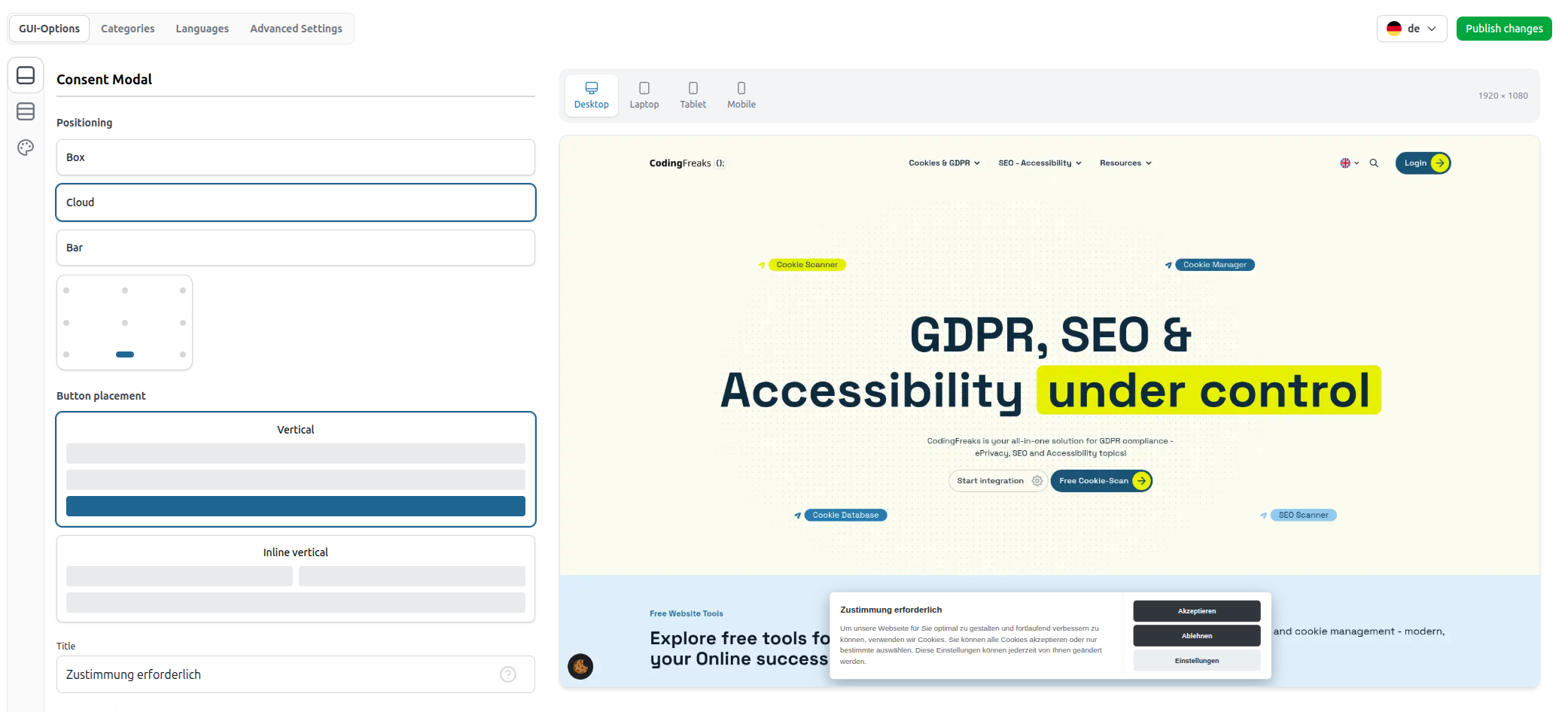
GUI Options
Design the look and position of your banner.
Consent Modal
The banner visitors see first. Choose a Layout (Box, Cloud, or Bar), a Position on screen, and a Button Placement (vertical, wide, or inline).
Preferences Modal
The detailed settings panel where visitors choose individual categories and services. Set its layout (Box or Bar) and position (left or right).
Categories & Services
This is the core of your configuration. Categories group similar services, and services represent the individual tools (Google Analytics, Facebook Pixel, etc.).
Click Add New Category. Choose a preconfigured category (recommended) or create a custom one.
mportant settings:
- Read-only - Visitors cannot turn this category off. Use for necessary cookies.
- Enabled by default - Category is pre-selected when the banner shows.
Adding Services
Inside a category, click Add Service. You can pick from a database of predefined services (recommended - auto-fills cookie names, descriptions, and scripts) or create a custom one.
Each service has:
- General - Name, identifier, description, provider domains
- Script Manager - JavaScript code that runs on accept/reject (your developer may need to configure this)
- Iframe Manager - Placeholder text for blocked iframes like YouTube videos
Service Identifier
Every service gets an identifier (for example `googleanalytics`). This identifier is important because your developer uses it to block scripts on the website. You can find it in the service settings under the General tab.
Cookies
Inside each service you can list the individual cookies it sets. This information is shown to visitors in the cookie table. For predefined services, cookies are filled in automatically.
Language Settings
Edit the texts visitors see in the banner for each language. Switch between languages using the tags at the top.
The most important things to configure here:
- Consent modal title and description
- Button labels
- Category and service descriptions
- Cookie descriptions (shown in the cookie table)
Do not forget to add your Privacy Policy and Imprint links in the footer section!
These links are legally required in most countries. Without them your cookie banner is not GDPR compliant. Set both the URL and the display text for each language.
Advanced Settings
Cookie Settings
Configure the consent cookie itself (the cookie that stores the visitor's choice):
- Cookie Name - Default: cccookie
- Cookie Domain - Your website domain
- Expires After Days - How long until visitors see the banner again
Page Behavior
- Disable Page Interaction - Blocks the page with a dark overlay until the visitor makes a choice
- Improve TTI Score - Delays banner HTML for faster page load
- Avoid SEO Bot Indexing - Hides the banner from search engine crawlers (recommended)
Revision Version
Increase this number when you make significant privacy policy changes. All visitors will see the banner again and must re-consent.
Theme & Colors
Pick a preset (Light or Dark) as your starting point, then customize individual colors.
Normal Mode shows the 10 most important colors (background, text, buttons, toggles, overlay).
Expert Mode unlocks all 50 CSS variables including hover states, borders, border radius, font family, z-index, and more.
Below the colors is a Custom CSS field for full control over the banner appearance.
Publishing
All changes auto-save as a draft. Click Publish to make them live on your website.
"Publish changes" = you have unpublished changes
"Published" = your live site is up to date
By using the Standalone Version of our Cookiemanager without Plugin Integration please continue in the
Developer Corner